
The Easiest Way to Track Unpaid Client Invoices in Excel

As a small business owner or freelancer, getting paid is the lifeblood of your business. But when you are managing multiple clients, projects, and deadlines, it is incredibly easy for an invoice to slip through the cracks.
Every outstanding invoice is cash sitting on the table. If you do not have a clear, organized system to track who owes you money, how much they owe, and when the payment is past due, you are losing money.
The good news? You do not need expensive, bloated accounting software to stay on top of your receivables. You can build a highly effective, automated tracking system right inside Excel.
Here is the step-by-step guide to setting up the easiest unpaid invoice tracker, along with the automated features you need to save time.
1. The Essential Columns Every Invoice Tracker Needs
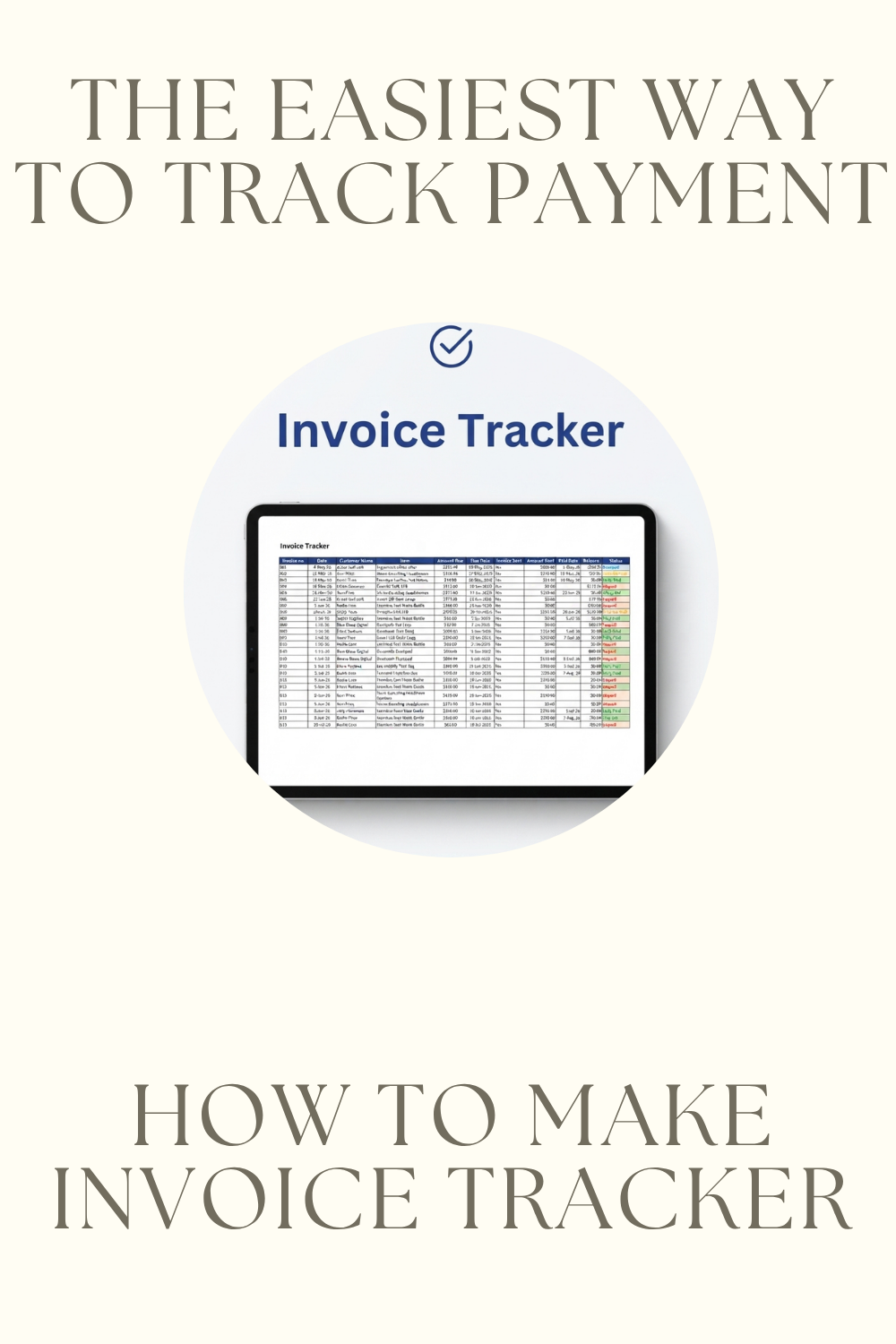
To keep your tracking simple and accurate, start with a clean data table. Set up a new Excel worksheet and create these exact column headers across the top row:
- Invoice Number: A unique identifier (e.g., INV-001) to keep your records precise..
- Date: When you provide the product or service.
- Customer Name: Who needs to pay you
- Item: The products or service you provided.
- Amount Due: The total dollar amount owed.
- Due Date: The deadline for payment (e.g., Net 30 days from issuance).
- Invoice Sent: A drop down menu that shows whether the invoice is sent to the customer or not.
- Amount Paid: How much the client has paid so far (usually $0 until partial or full payment).
- Paid Date: The date for when the payment occurred (If It occurred).
- Balance Due: A formula calculating the remaining amount (=Amount Due – Amount Paid).
- Status: An automatic status to instantly see where the invoice stands.
2. Automating Your Status with Formulas
Manually checking the calendar to see if an invoice is late, takes too much time. Let Excel do the math for you.
Calculate The Invoice Status Automatically
Enter this formula on your Invoice tracker sheet, on the status column:
=IF([@[Amount Due]]=””,””,IF([@[Amount Paid]]=0,”Unpaid”,IF([@[Amount Paid]]>[@[Amount Due]],”Overpaid”,IF([@[Amount Paid]]<[@[Amount Due]],”Partially Paid”,”Fully Paid”))))
- How it works: If the amount paid is 0, the status automatically says unpaid. If the amount paid is grater than the amount due, the status automatically says overpaid, If the amount paid is less than the amount due, the status automatically says Partially paid and if the amount due is equal to the amount paid, the status automatically says Fully paid.
Format Your Sheet into an Official Excel Table
Highlight your entire data range (including headers) and press Ctrl + T. Turn it into an official Excel Table. This ensures that every time you add a new invoice row, your formulas copy down automatically.
3. Visualizing Late Payments with Conditional Formatting
The secret to a great tracker is visual scanning. You should be able to open your spreadsheet and instantly spot which clients need a follow-up email.
You can use Conditional Formatting to highlight overdue invoices in red:
- Add a sheet named “Set up”. And enter the statuses: Overpaid, Fully Paid, Partially Paid and Unpaid
- In the invoice tracker sheet, go to the Home tab and click Conditional Formatting > New Rule.
- Select Format only cells that contain under the select a rule type section.
- Go to Edit the Rules Description section, under Format only cells with choose Cell Value, equal to, Then select New formatting rule (or the arrow) and select “unpaid” under the “Set up” sheet.
- Then on preview section click on Format > Font > Bold and let the font color be Red. Then click on Fill and choose the color light pink.
Now, the second an amount paid is 0, its due date without being paid, the cell turns red, signaling that it is time to send a payment reminder.
Do the same thing with your color preference for all of the statuses. After that you can hide the “Set up” sheet to make your excel look less cluttered.
Skip the Setup: Get a Ready-to-Use Automated Tracker
Building a spreadsheet from scratch takes time away from serving your clients and growing your business. Prefer to skip the setup and start tracking immediately? You can download my pre-built, fully automated Invoice Tracker template here [Link] and start managing your receivables in seconds. Don’t let unpaid invoices hurt your cash flow. Get organized today.